
In this guide, we will tell you in detail how to bind a key in CSS, starting from the simplest and most common examples for beginners, and ending with more advanced binds that you likely haven't seen anywhere else.
First, let's figure out what a bind is. The word comes from English "bind", meaning "to tie, to attach". In our case, we are assigning one or several console commands to a specific key/button. Usually, players use binds to save time on entering commands into the console; simple examples include quick weapon purchases, throwing grenades, or sending a message to the chat.
How to bind a key in CSS v34 (and on v92+)
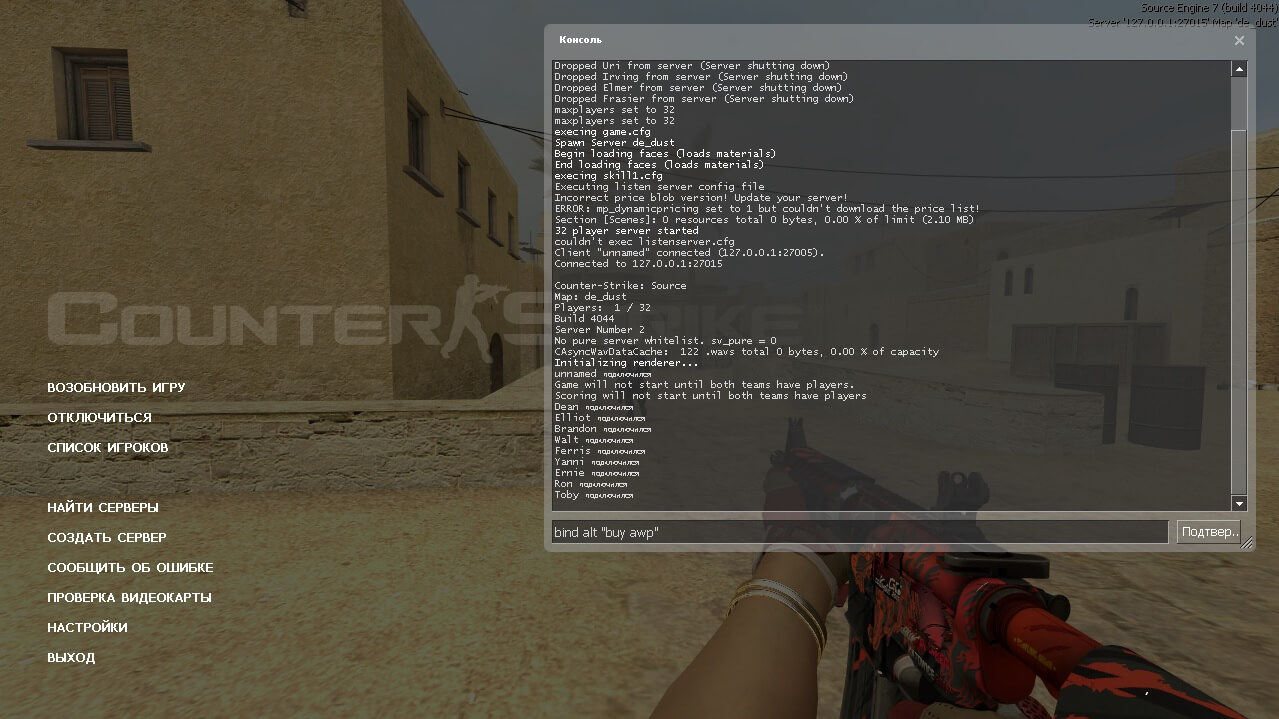
- Open the console (how to do this is written in this article)
- Enter the command in the following format:
bind key "command" - Press the "Submit" (or Send) button.
A great example is bind alt "buy awp", which allows you to buy an AWP by pressing the ALT key.
How to bind two commands to one key
If there are several commands, they need to be separated by the ";" symbol (semicolon).
bind key "command1; command2; command3;"Example: bind v "buy mp5; buy p228", now pressing v will purchase an MP5 and a P228 pistol.
How to bind a chat phrase
bind p "say Hello everyone!"Weapon binds in CSS
Now let's move on to weapon purchase binds. Below we have compiled a list of the most popular weapon binds that will make your game more convenient and effective, as you can buy your favorite guns in a matter of seconds.
- bind F1 "autobuy" — auto-purchase (armor, AK-47 or M4A1, defuse kit).
- bind F2 "buy hegrenade; buy flashbang; buy flashbang; buy sgrenade" — buy all grenades.
- bind F3 "buy awp; buy deagle" — bind for buying Deagle and AWP.
- bind F4 "buy m4a1; buy vesthelm; buy defuser; buy hegrenade; buy flashbang; buy flashbang; buy deagle" — CT kit (M4A1, Desert Eagle, Kevlar+Helm, HE grenade and flashbangs).
- bind F5 "buy ak47; buy vesthelm; buy hegrenade; buy flashbang; buy flashbang; buy deagle" — Terrorist kit (AK-47, Desert Eagle, Kevlar+Helm, HE grenade and flashbangs).
If you want to create your own unique weapon bind, we suggest using the template below.
bind key "buy weapon_name; buy weapon_name"Attached to the template is a list of all weapon names in CSS:

Useful binds in CS:Source
- bind j "r_cleardecals" - bind to clear the map of debris (bullet marks, explosions, blood), can boost FPS.
- bind p "say !medic" - bind for medic (on servers where available).
- bind h "sm_admin" - bind for admin menu (opens if you have access).
- bind o "use weapon_c4; drop;" - bind to drop the bomb.
Grenade binds in CSS will also be useful:
- bind key "use weapon_hegrenade" - select HE grenade
- bind key "use weapon_flashbang" - select Flashbang
- bind key "use weapon_smokegrenade" - select Smoke grenade
How to unbind a key in CSS
If you want to remove a bind from a specific key, you will need the unbind command, for example:
- unbind mouse3 - unbind the mouse wheel
Moving on to the second part of the article, where we will analyze more interesting bind techniques that will help you create a truly unique and cool config!
Bind with value switching (Toggle)
Using the toggle command, you can bind different command values to a single key and switch between them with each press.
The best example would be a bind for switching hands:
bind mouse3 "toggle cl_righthand 0 1"Now when you press the mouse wheel, you will switch the weapon from the right hand to the left, and back.
You can also make a bind for several commands simultaneously:
bind mouse3 "toggle cl_crosshairdot 0 1; toggle cl_crosshairsize 2 5"This command switches the crosshair from small to large and turns the dot in the middle of the crosshair on/off (but this specific bind is only for newer versions of CSS).
Bind using increment (incrementvar)
With such a bind, every time you press the assigned key, the value will increase by a set amount (delta). Recording template:
incrementvar command min_value max_value deltaExample of an incremental bind:
bind mouse3 "incrementvar cl_crosshairsize 0 5 1"With each click of the mouse wheel, your crosshair will change its size from 0 to 5, in steps of one.
Here is the adaptation of this command for older versions of CS Source (v34).
bind mouse3 "incrementvar cl_crosshairscale 1000 5000 1000"Additional commands
- key_listboundkeys - list of all binds
- key_findbinding "r_cleardecals" - finds the key to which the specified command is bound (in our case r_cleardecals)
Numpad Binds
It is usually recommended to assign your binds to the numpad keys (located on the right side of the keyboard). We have prepared the designations for each numpad key for you:
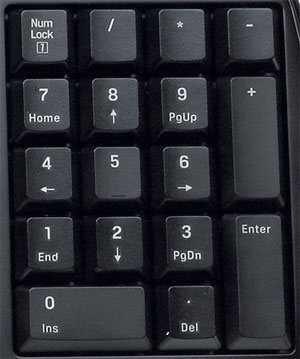
- kp_slash – key “/”
- kp_multiply – key “*”
- kp_minus – key “-“
- kp_home – key “7”
- kp_uparrow – key “8”
- kp_pgup – key “9”
- kp_leftarrow – key “4”
- kp_5 – key “5”
- kp_rightarrow – key “6”
- kp_end – key “1”
- kp_downarrow - key “2”
- kp_pgdn – key “3”
- kp_ins – key “0”
- kp_del – key “.”
- kp_plus – key “+”
This concludes our guide! Finally, we want to note that all described binding methods work for both new versions (Steam/No Steam) and the legendary CSS v34.