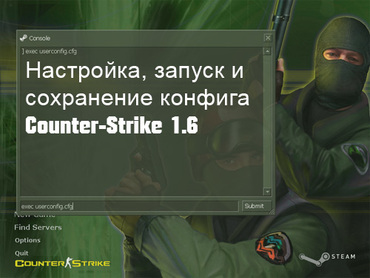

Many beginners wonder how to open the console in CSS. In this guide, we will explain in detail how to do this in every version of CS:Source. Why is the console needed? The fact is that not all settings are available in the game menu (especially in older versions of Counter-Strike). Some options are simply essential for fine-tuning your config, as a well-configured cfg is the key to comfortable and effective gameplay. For example, you can adjust graphics parameters, the environment, and the interface (customize the crosshair).
The console is not enabled by default in all builds, so we recommend activating it first. It is quite simple to do.
How to enable the console in CSS v34
- Launch CS;
- Select Options;
- Click on the Keyboard tab;
- Click on the Advanced button;
- In the window that opens, check the box for Enable developer console (~), then press OK;
- To save changes, press OK in the main options menu;
How to enable the console in CSS v92
The instructions for activating the console on newer versions of CSS (Steam, No Steam) are not much different. Only the name of the checkbox item has changed - it is now Enable console.
How to open the console in CSS
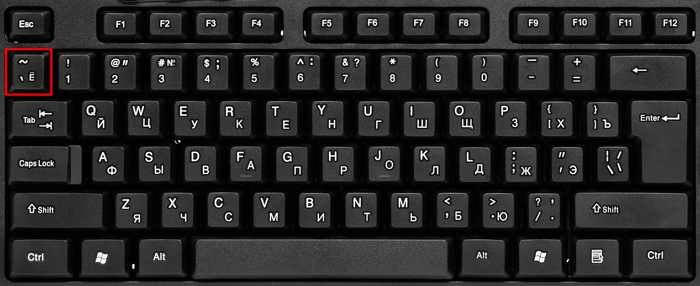
To open the console, you need to press the "~" key (tilde). It is usually located in the upper left corner of the keyboard (right below ESC).
That's it! You have learned how to enable and open the console in Counter-Strike: Source of any version. Now you can activate any console commands, as well as customize the game to your liking.